
Install BelkaVPN on Android
Install the BelkaVPN app from Google Play, sign in, choose a location, and connect to a secure server.
Install BelkaVPN on Android
The BelkaVPN app gives your phone or tablet one-tap VPN protection. A VPN keeps your internet traffic private. This guide shows you how to install the app from Google Play, sign in, pick a location, and connect.
[!NOTE] Before you start: you need a BelkaVPN account. If you don't have one yet, create an account first — or register directly in the app during sign-in.
Quick summary
- Install BelkaVPN from Google Play.
- Open the app and sign in with your BelkaVPN account.
- Choose a location and tap to connect.
Step 1 — Install from Google Play
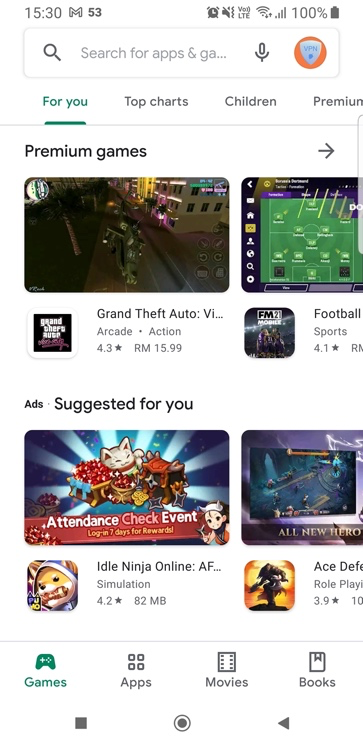
- Open the Google Play Store on your Android device.
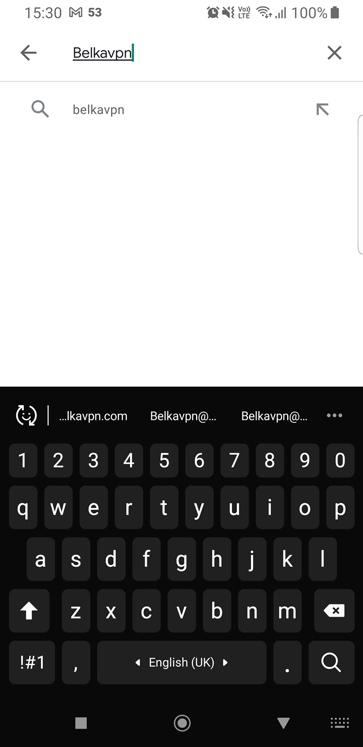
- Tap the search bar at the top and enter BelkaVPN.
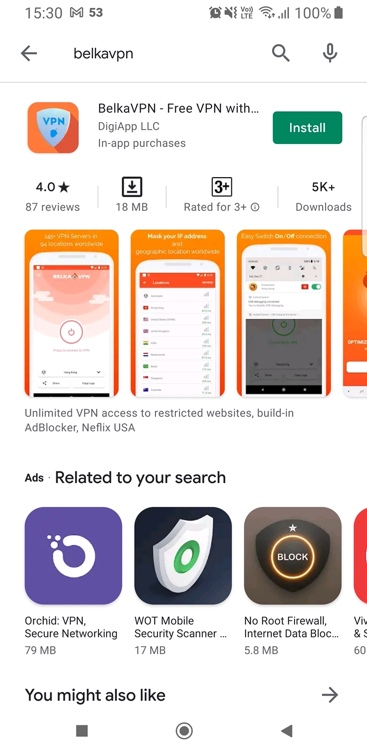
- Open the BelkaVPN listing and tap Install. The app downloads and installs on its own.
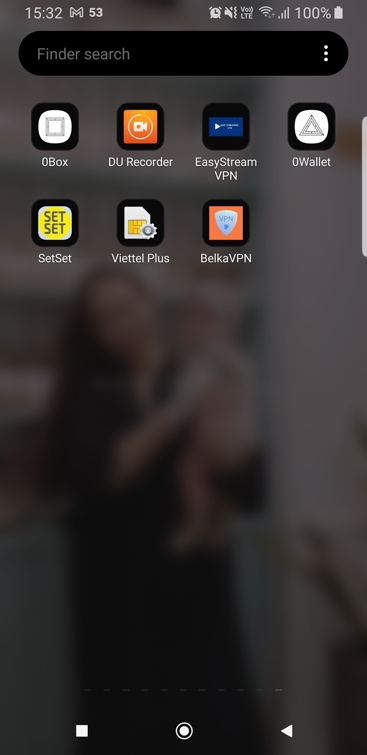
Once the install finishes, the BelkaVPN app appears in your app drawer and on your home screen.
Step 2 — Open the app
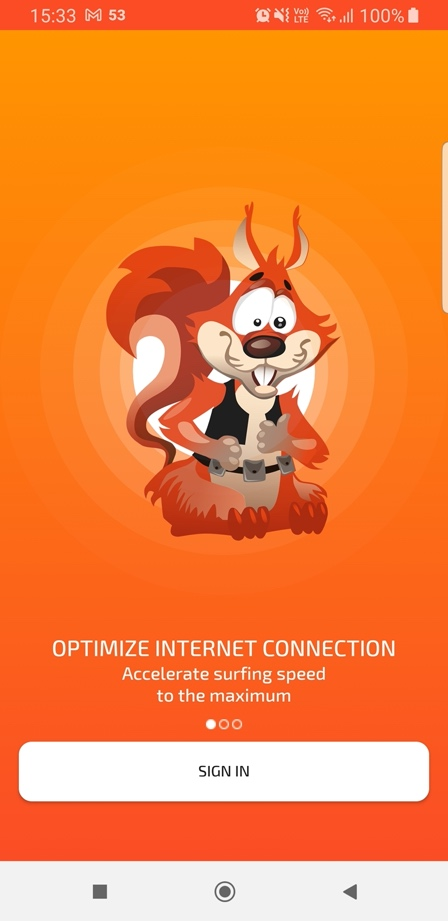
Tap the BelkaVPN icon to open the app. You'll land on the welcome screen.
Step 3 — Sign in
Tap SIGN IN, enter the email and password for your BelkaVPN account, then tap Log In.
Don't have an account yet? Enter your email and password to register a new one instead.
Step 4 — Choose a location
Before connecting, tap the location tab (the globe icon) and choose your country from the list. A newly installed app picks a location for you automatically.
Step 5 — Connect
Tap the large connect button. The first time you connect, Android shows a connection request to set up the VPN — tap OK to allow it.
When the button turns green and shows Connected to VPN, you're protected.
To disconnect, tap the connect button again.
Troubleshooting
- The app won't sign in. Confirm your subscription is active and that your email and password are correct. Verify them by signing in at belkavpn.com.
- The connection request didn't appear. Reopen the app and tap connect again. Android asks you to approve the VPN setup the first time you connect.
- You want a specific server. Before connecting, tap the location tab and pick a country from the list instead of leaving it automatic.