
Manual OpenVPN setup on Android
Install the OpenVPN Connect app on Android, import a BelkaVPN profile, and connect with your account credentials.
Manual OpenVPN setup on Android
Prefer OpenVPN? BelkaVPN works with the standard OpenVPN app on Android. In this guide you'll install the app, export a BelkaVPN profile (a small file that holds your connection settings), import it, and connect. It only takes a few minutes.
[!NOTE] Before you start: you need an active BelkaVPN account. If you don't have one yet, create an account first.
Quick summary
- Install the OpenVPN app from Google Play.
- Export an OpenVPN profile from your BelkaVPN account.
- Import the profile into the OpenVPN app.
- Enter your credentials and connect.
Step 1 — Install the OpenVPN app
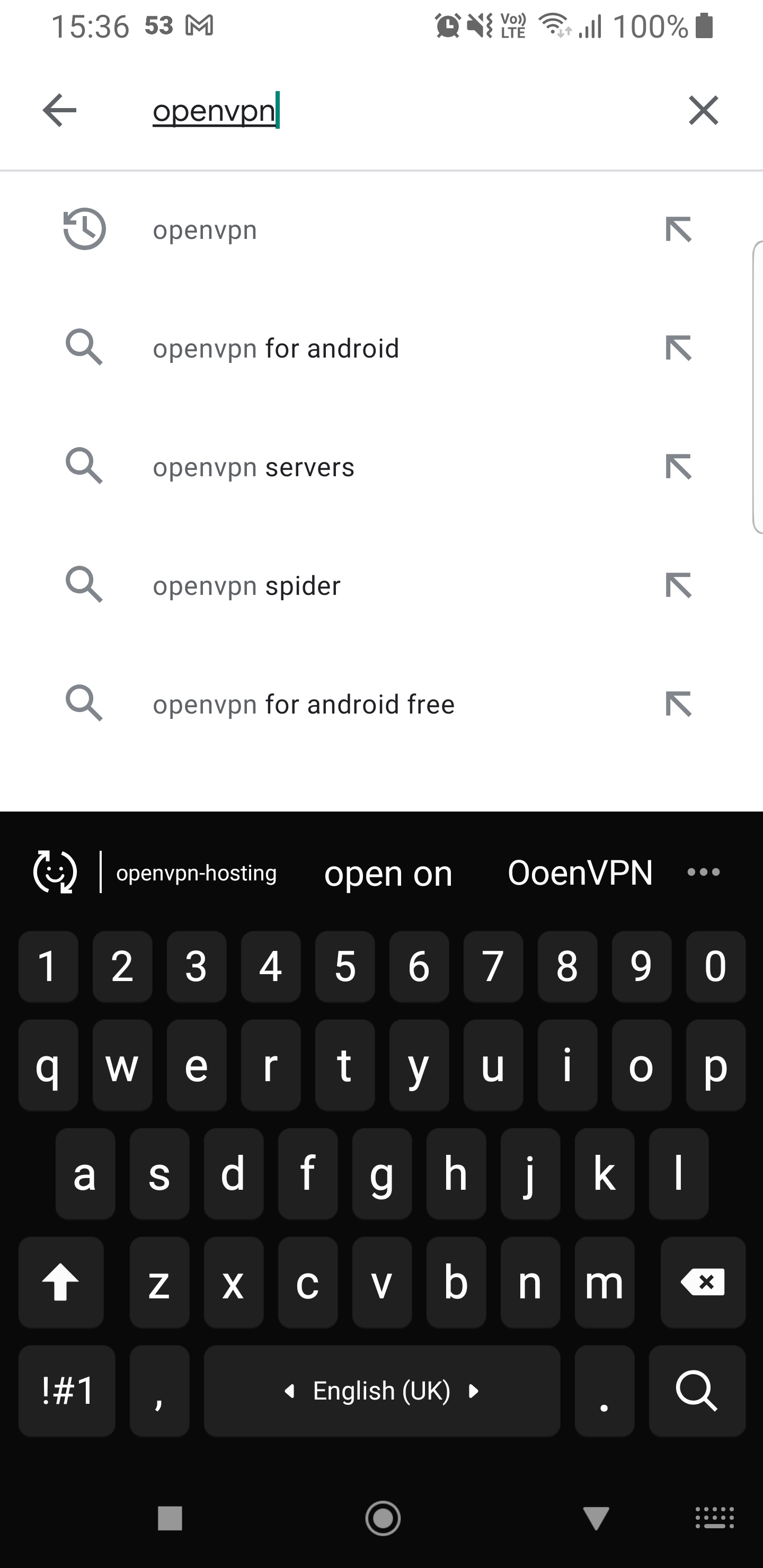
- Open the Google Play Store on your Android device.
- Search for OpenVPN.
- Open the official OpenVPN Connect app.
- Tap Install.
- Return to your home screen to confirm the app installed.
Step 2 — Export your BelkaVPN profile
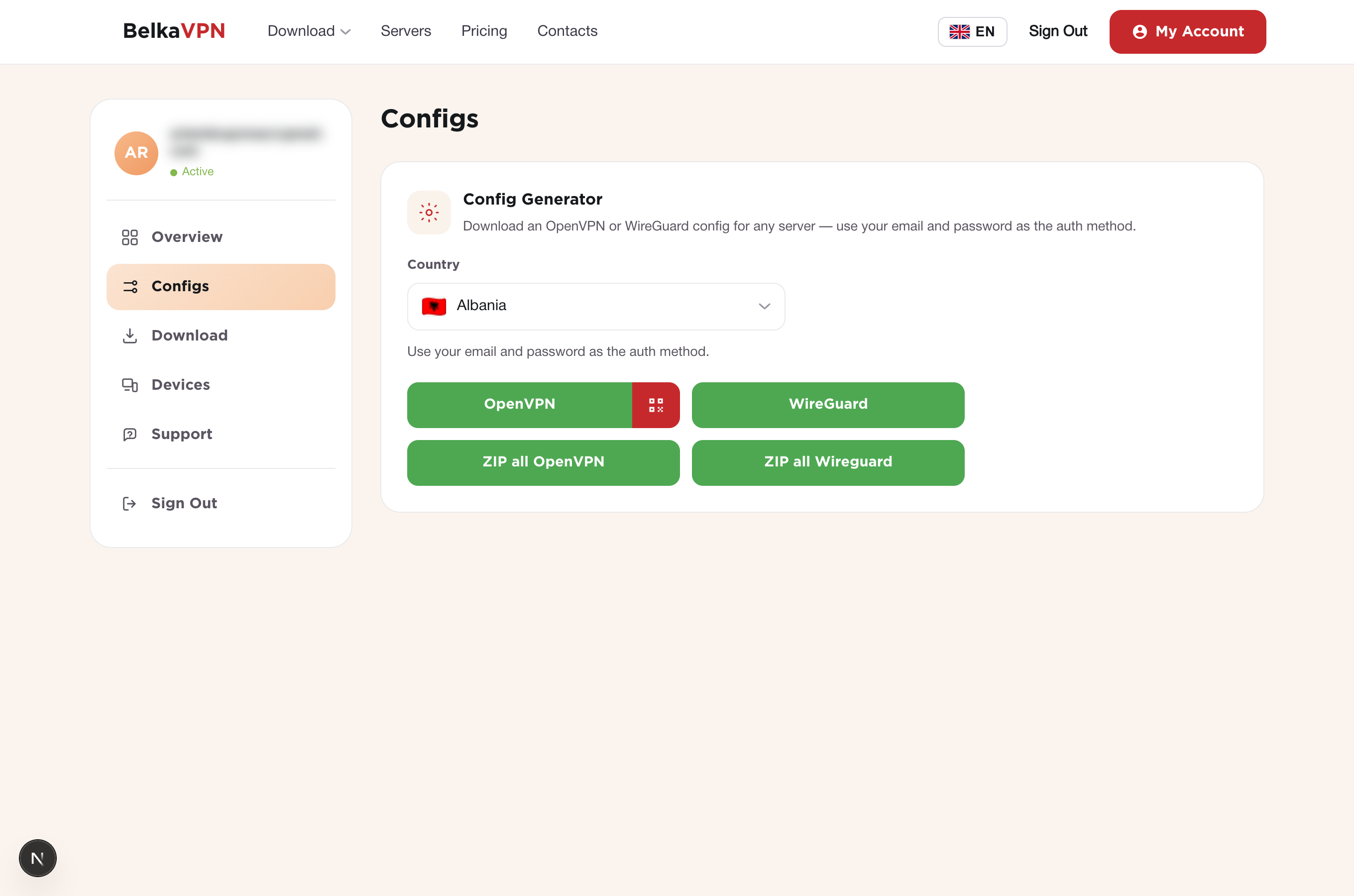
- Go to belkavpn.com and sign in to your account.
- Open your account's configs section and select your country.
- Choose to export the OpenVPN profile as a file (not as a URL).
- Download the file to your device. Tap Allow if a permission prompt appears.
[!TIP] Export the profile as a file, not a URL. The file is what the OpenVPN app imports in the next step.
[!NOTE] The exact dashboard path may differ on the current site. Sign in at belkavpn.com, open your account → configs, and look for the OpenVPN export option. If you can't find it, contact BelkaVPN support.
Step 3 — Import the profile into OpenVPN
- Open the OpenVPN app. If a disclaimer appears, read it and tap Agree.
- Select the profile file you just downloaded.
- Tap the Import button to load the profile.
Step 4 — Enter your credentials and connect
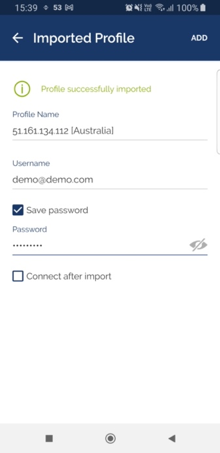
- Once the profile is imported, enter your BelkaVPN username and password.
- Tick Save password so it fills in automatically next time.
- Tick Connect after import to connect right away.
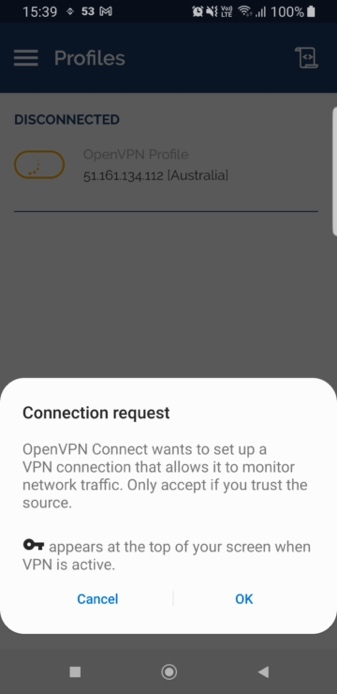
- When Android asks permission to set up a VPN connection, tap OK to allow it.
When you see the green connected status, you're protected by BelkaVPN over OpenVPN.
Troubleshooting
- The profile fails to import. Confirm you exported an OpenVPN profile (not WireGuard). Re-export it from your BelkaVPN account and import the file again.
- Authentication fails. Double-check your BelkaVPN username and password, and make sure your subscription is active. Verify your credentials by signing in at belkavpn.com.
- You can't find the export option. Sign in at belkavpn.com and open your account's configs section, or contact BelkaVPN support for the current path.