
Install the BelkaVPN OpenVPN app (PC/Mac)
Download the BelkaVPN OpenVPN app, import a server config, and connect on Windows or macOS.
Install the BelkaVPN OpenVPN app (PC/Mac)
This guide shows you how to use BelkaVPN with OpenVPN on your Windows PC or Mac. OpenVPN is a trusted, secure way to connect to a VPN. Here's the plan: you download the OpenVPN app from your BelkaVPN dashboard, create a small setup file (called a config file) that points the app at a server, load that file into the app, and connect. Each step is spelled out below, so you can follow along at your own pace.
[!NOTE] Before you start: you need a BelkaVPN account. If you don't have one yet, create an account first. A single account lets you connect to BelkaVPN servers in locations all over the world.
Quick summary
- Sign in at belkavpn.com and open Download.
- Download the OpenVPN app for your computer and install it.
- In the Config Generator, pick a country and download an OpenVPN UDP config file.
- Load the config file into the OpenVPN app, enter your login details, and connect.
Step 1 — Download the OpenVPN installer
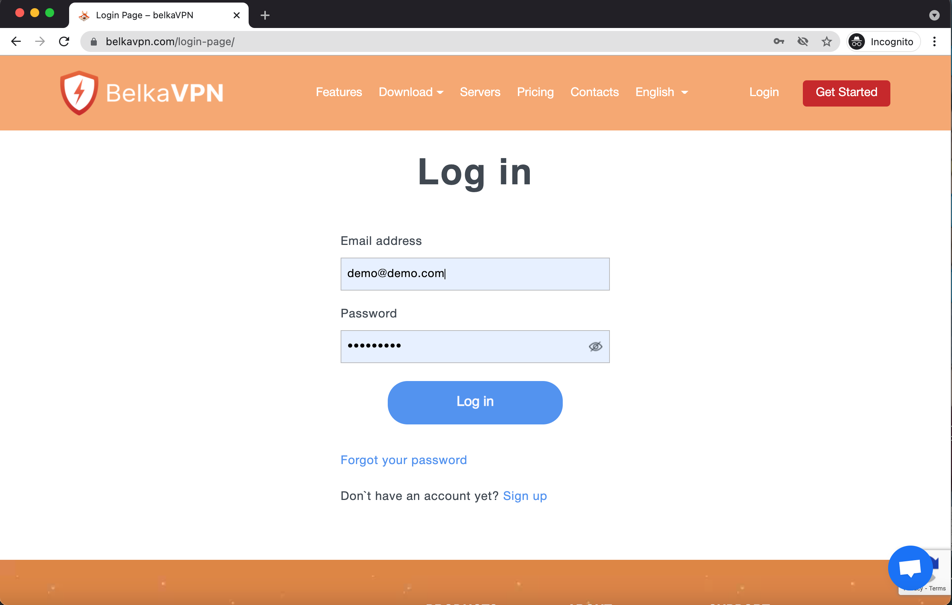
- Go to the BelkaVPN login page, enter your email and password, and select Log In.
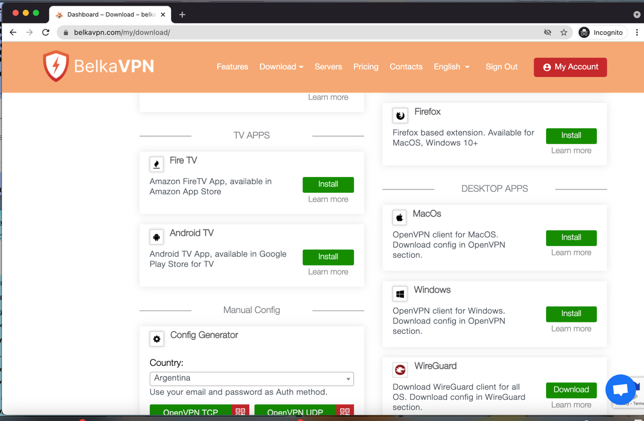
- In the sidebar on the left, below Overview, click Download.
- Find the OpenVPN app for your computer and download the installer (the file that sets up the app):
- Windows — download the Windows installer.
- Mac — download the macOS installer.
[!NOTE] The exact Download page layout and per-platform installer links couldn't be confirmed against the current dashboard — verify the download location and filenames before publishing.
Step 2 — Install the app
Open the file you just downloaded and follow the on-screen prompts until the app finishes installing.
- Windows — double-click the installer and click through each prompt to accept it.
- Mac — open the installer and follow the steps it shows you.
Step 3 — Generate a server config
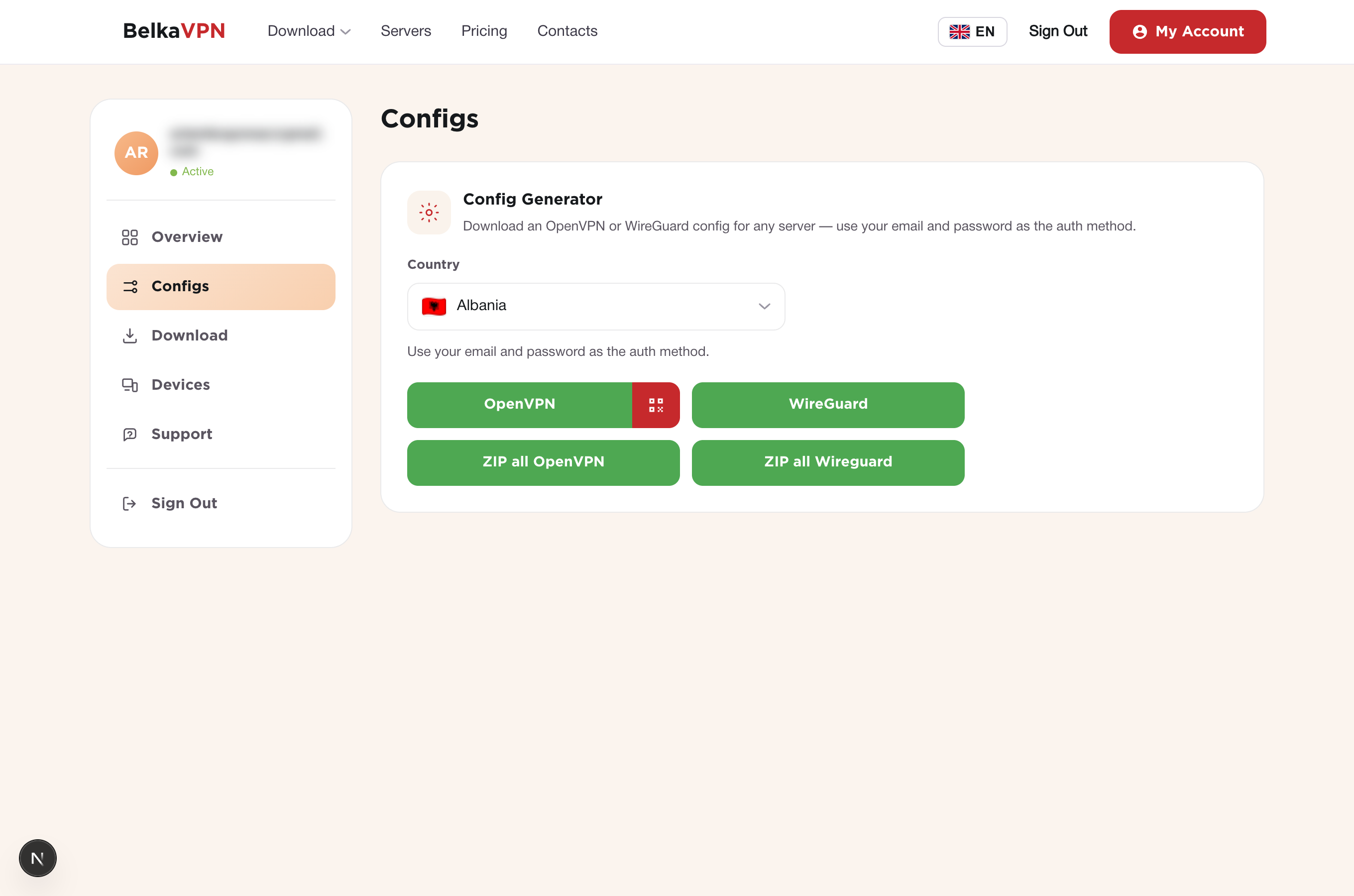
A config file tells the app which BelkaVPN server to connect to. Here's how to create one:
- Back in your web browser, return to the BelkaVPN Download page.
- Scroll down to the Config Generator.
- Open the country list and choose the location you want to connect through.
- Click OpenVPN UDP. The config file downloads to your computer automatically.
Step 4 — Import the config and connect
- Open the config file you just downloaded. The OpenVPN app opens and asks if you want to import (load) the profile.
- Click OK to continue to the Imported Profile screen.
- Enter your BelkaVPN email and password. Tick Save Password if you'd like the app to remember your login for next time.
- Click CONNECT.
Once the connection works, the app shows a connected status. You're now protected with OpenVPN.

Troubleshooting
- The app won't sign in. Check that your subscription is active and that your email and password are correct. Try signing in at belkavpn.com to confirm your login works.
- Nothing downloads from the Config Generator. Make sure you picked a country before clicking OpenVPN UDP, then check your browser's downloads folder.
- The config loads but won't connect. Create a fresh config file for the same location and load it again, or try a different country in the Config Generator.